Claude Code is a powerful command-line tool that brings AI-powered code generation and analysis to your terminal. While it defaults to Anthropic’s API, you can extend its capabilities by configuring it to work with different AI providers. This guide shows you how to set up Claude Code with various providers to access free and paid model options.
Installing Claude Code
First, install Claude Code for your operating system.
Windows
Run with PowerShell:
irm https://claude.ai/install.ps1 | iex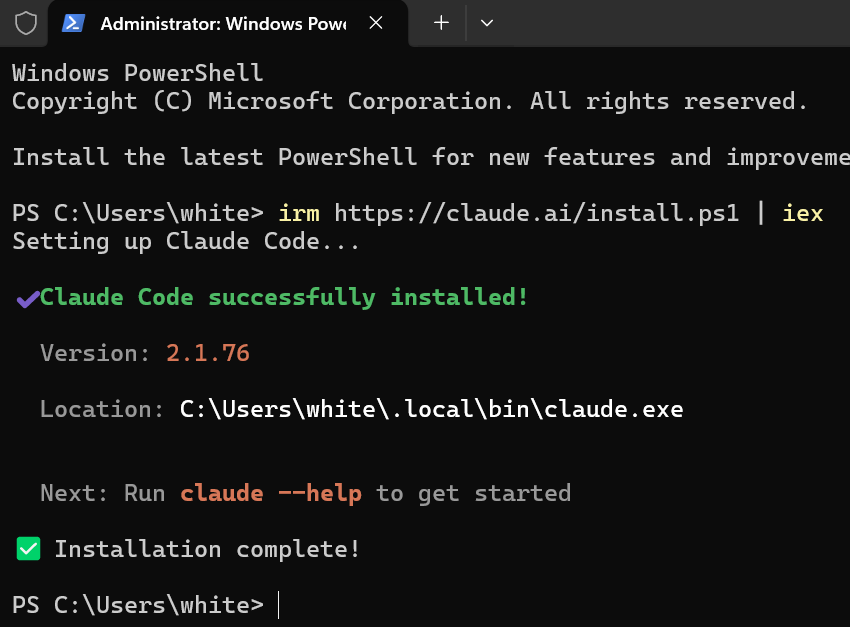
Linux & macOS
curl -fsSL https://claude.ai/install.sh | bashSetting up the Environment Path for claude.exe (Windows)
After installation, add the Claude Code binary folder to your system PATH environment variable.
C:\Users\USERNAME\.local\bin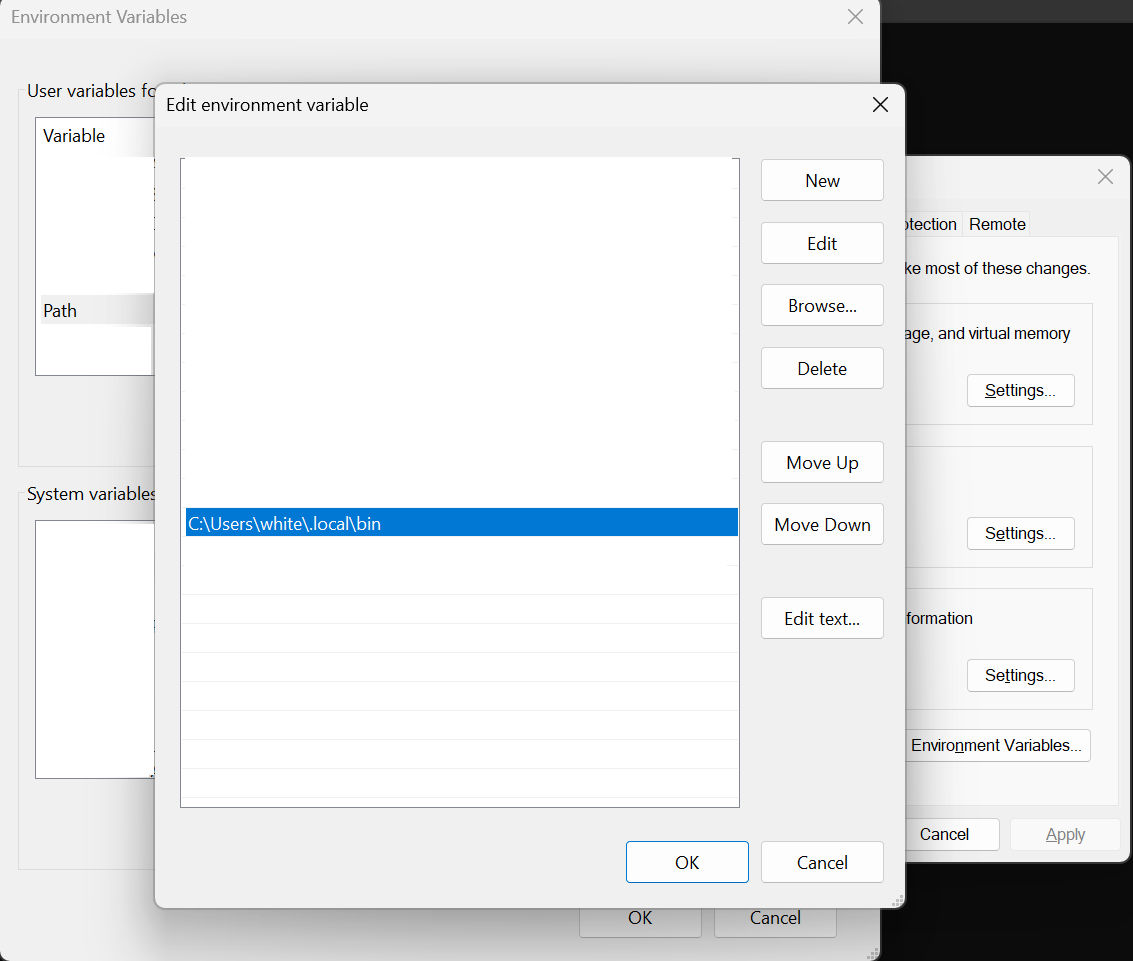
Configuration with Environment Variables
Claude Code can be configured using environment variables to work with different providers. Here are the key environment variables:
- ANTHROPIC_BASE_URL - The API endpoint (default:
https://api.anthropic.com) - ANTHROPIC_MODEL - The selected model to use
- ANTHROPIC_AUTH_TOKEN - Your API key or authentication token
- ANTHROPIC_CUSTOM_HEADERS - Custom headers for specific providers (optional)
# Make sure you have installed Node.js
npx claude-code-profile-switcher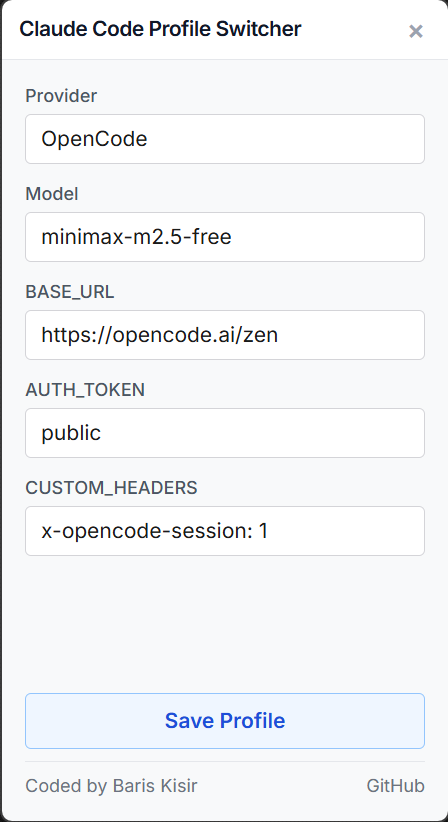
Select a provider and model, enter your API key, then click save. The tool will store these as environment variables based on your operating system. Make sure you open a new terminal after setting environment variables.
Default Model
Run Claude Code with the default configured model:
claudeSpecific Model
Run Claude Code with a specific model using the --model flag:
claude --model z-ai/glm-5Skip Permission Checks
If needed, you can skip permission confirmations with the --allow-dangerously-skip-permissions flag:
claude --model moonshotai/kimi-k2.5 --allow-dangerously-skip-permissionsFinding Free and Trial Providers
Many providers offer free and trial LLMs that work with Claude Code. Check out this comprehensive list:
Bonus: Add Claude Code to Windows Context Menu
Make Claude Code even more convenient by adding it to your Windows right-click context menu.
Install Context Menu
powershell -ExecutionPolicy Bypass -Command "irm https://raw.githubusercontent.com/bariskisir/ClaudeCodeContextMenu/master/install.ps1 | iex"Uninstall Context Menu
powershell -ExecutionPolicy Bypass -Command "irm https://raw.githubusercontent.com/bariskisir/ClaudeCodeContextMenu/master/uninstall.ps1 | iex"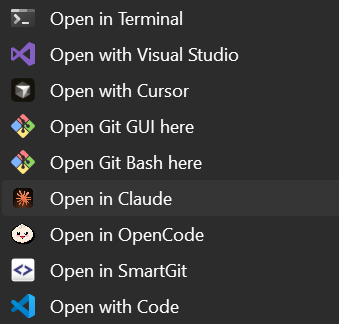
References & Documentation
Claude Code Quick Start - https://code.claude.com/docs/en/quickstart
LLM Gateway - https://code.claude.com/docs/en/llm-gateway
Model Configuration - https://code.claude.com/docs/en/model-config
Environment Variables - https://code.claude.com/docs/en/env-vars
Claude Code Context Menu - https://github.com/bariskisir/ClaudeCodeContextMenu
OpenCode Context Menu - https://github.com/bariskisir/OpenCodeContextMenu
Codex Context Menu - https://github.com/bariskisir/CodexContextMenu
Gemini Context Menu - https://github.com/bariskisir/GeminiContextMenu